Homepage and Banners
How to change the homepage — the images, the words, the French versions, and the settings to leave alone.
Everything here happens in the theme editor
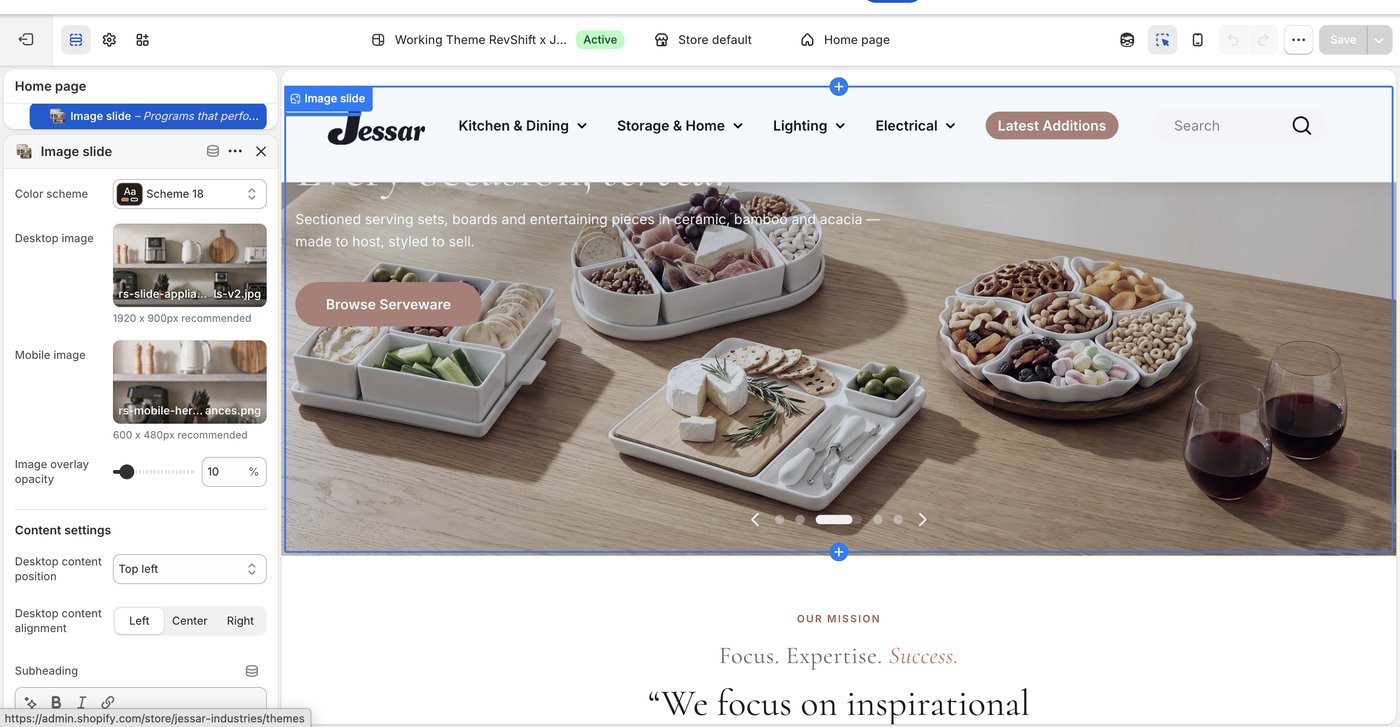
The homepage is not edited from Products or Content. It is edited in the theme editor: Online Store → Themes → Customize. The page opens with a preview in the middle and a list of its sections down the left; clicking a section opens its settings on the right.
What is on the homepage
| Section | What it is | What you can change |
|---|---|---|
| Slideshow | Five rotating full-width slides | Image, mobile image, sub-heading, headline, button text, button link |
| Mission statement | Short centred text | Text |
| Our story | The heritage block | Text |
| Mission bar | A narrow line of text | Text |
| Scrolling banners | Three tall full-width images with copy | Image, mobile image, sub-heading, headline, button |
| Capabilities | Six short blocks | Text |
| Brands | Ten brand tiles | Image, title, link |
| Category showcase | Four department cards | Image, title, button text, collection |
| Lookbook | A wide image slider | Image |
| Inside Jessar | Two content blocks | Image, text |
| Brand logos | Fifteen partner logos | Image |
| In-store gallery | Sixteen retail shelf photographs | Image |
| Doors | Two large image cards | Image, text, link |
| Gifting band | A single band | Text |
| Closing text | A short paragraph | Text |
The French homepage can use different images
Slide images are translatable, not just slide text. Both Background and Background (mobile) can hold a different file for French.
This matters whenever artwork has words baked into it. Translate the headline and leave the picture, and the French page still shows English text inside the image.
| What | Where |
|---|---|
| French headline, sub-heading, button label | Apps → Translate & Adapt → Theme |
| French slide image | The same place — the Background fields appear alongside the text |
What not to touch
The settings below change how the site is built rather than what it says. They are easy to reach and hard to undo, and they are not part of updating homepage content.
| Leave alone | Why |
|---|---|
| Adding, removing, hiding or reordering sections | Changes the structure of the page and the order the story is told in |
| Theme settings — colours, typography, buttons, layout | Applies across the entire site, not just the homepage |
| Colour scheme on a section | Each section is set to a specific scheme deliberately; changing it breaks the page's rhythm |
| Padding, spacing, section height, container width | Tuned per section to match the design |
| Anything under App embeds or Custom CSS | Site-wide behaviour |
| The header, footer or menu | Structural and site-wide |
| Theme actions — publish, rename, duplicate, delete | Can take the site down or overwrite work |
| The code editor | Never. Theme code changes go through RevShift |