New Product Guide
How to add a product, according to how the Jessar site is built.
Paths
| Looking for | Path |
|---|---|
| Description, Media | Products → [Product] |
| SKU and barcode | Products → [Product] → Inventory |
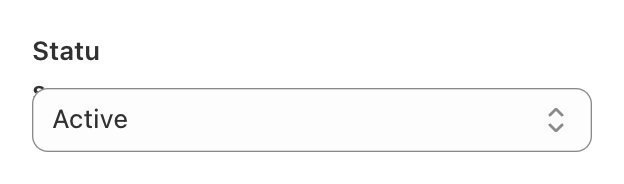
| Status (Draft / Active) | Products → [Product] → Status |
| Online Store tick | Products → [Product] → Publishing |
| Product type, Vendor, Tags | Products → [Product] → Product organization |
| Romance, bullets, specs | Products → [Product] → Metafields |
| Electrical specs, UPC, families | Products → [Product] → Metafields → Show all |
| Features / family / brand records | Content → Metaobjects |
| French | Apps → Translate & Adapt |
| Many products at once | Apps → Matrixify |
What every product gets, and what a hero product gets on top
Every product carries the fields in this guide. A small number of products also carry four extra blocks — the hero treatment. There is no switch for this; it is added by writing the extra content.
| Extra block | What it needs | On now |
|---|---|---|
| Product Story | Story image + Story heading + Story (hero tier) — all three, or none | 1 product |
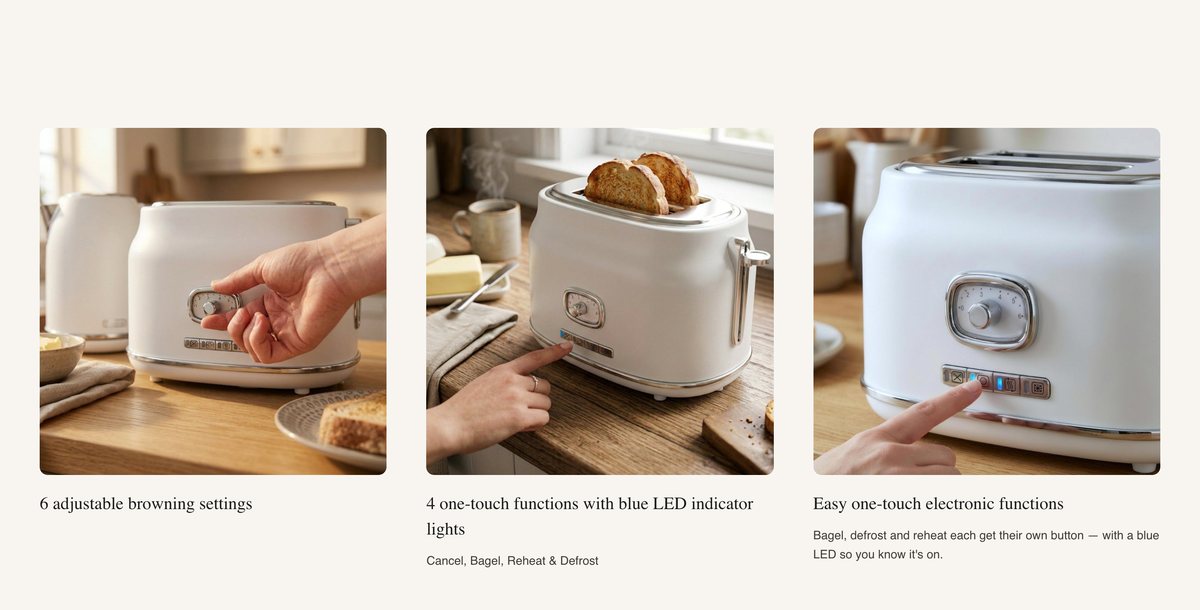
| Features (3 columns) | A Product features record, created then linked — see below | 57 products |
| Benefits line | Short phrases, one per line | 6 products |
| Retail Ready | Box image | 1,432 products |
Setting up Features
- Create the recordContent → Metaobjects → Product features (PDP) → Add entry
Up to four features, each with an image, a title and a short text.
At least one feature saved
- Link it to the productProducts → [Product] → Metafields → Show all → Product features (PDP)
Select the record and Save.
Features block shows in preview
A Features record belongs to one product. Do not link one product's record to another.
Linking the brand block
Every product also carries a brand block near the bottom of the page. It comes from a Brand Profile written once per brand — for a new product, link the existing one for that vendor at Products → [Product] → Metafields → Show all → Brand profile. Only create a new Brand Profile when a brand is added for the first time.
Required on every product
| Field | Where | What to enter |
|---|---|---|
| SKU | → Inventory | As the master file |
| Barcode (UPC) | → Inventory | Digits only |
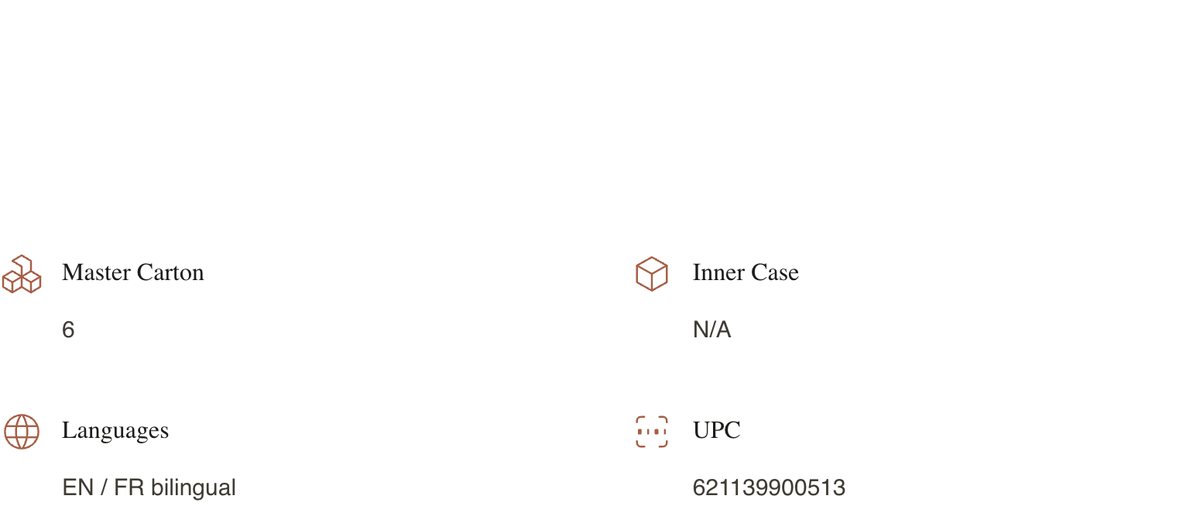
| UPC | → Metafields → Show all | The same number again |
| Product type | → Product organization | An existing type, from the suggestion list |
| Vendor | → Product organization | An existing brand, from the suggestion list |
| Shelf tag | → Product organization → Tags | From JES-COL-01 |
| Dimensions | → Metafields | Metric and imperial, where both are known |
| Weight | → Metafields | Grams and imperial, where both are known |
| Packaging type | → Metafields | From the packing data |
| Qty per package | → Metafields | Units per inner case |
| Qty per container | → Metafields | Units per master case |
By category — fill what applies
| Kind of product | Fields |
|---|---|
| Kitchen, cookware, tableware | Materials · Color / finish · Capacity · Set / piece count · Care instructions · Heat resistance · Lid material |
| Light fixtures | Type (display) · Materials · Color / finish · Cord length · Bulb requirement · Certifications · Warranty period · Show all: Wattage · Voltage |
| Bulbs | Certifications · Warranty period · Show all: Wattage · Voltage · Base type · Bulb shape · Lumens · Color temperature · Life (hours) · Beam angle · Dimmable |
| Electrical accessories | Cord length · Certifications · Safety claims · Show all: Wattage · Voltage · Frequency |
| Textiles, bath, home | Materials · Color / finish · Care instructions · Set / piece count |
Certifications and the two guide links
| What you type | What appears |
|---|---|
| ETL · cETLus | The cETLus mark |
| UL · UL Listed · cUL · cULus · C UL US | The cULus mark |
| CSA · FCC · RoHS · CE · Energy Star | That mark |
| Anything else — BPA-free, IP65, ICES-005 | A text chip reading exactly what you typed |
| Field | Takes | Example of a correct value |
|---|---|---|
| Spec sheet (PDF) | An uploaded file | Click the field, upload 5-90051-spec.pdf. The “Download product PDF” link then appears on its own |
| Smart Item Setup Guide 101 | A web address | https://jessar.ca/pages/smart-setup-101 |
| Bulb guide 101 | A web address | https://jessar.ca/pages/bulbs-101 |
A web address must start with https:// and be the full address. /pages/bulbs-101 on its own will not work, and a file cannot be attached to either guide field.
“Also available in” — colours and sizes
Colours and sizes are separate products here, not Shopify variants. A family record links them so each shows the others as swatches.
- Create the recordContent → Metaobjects → Variant family → Add entry
Name it, add every member to Products in family, in order.
All members in one record
- Link it from every memberProducts → [Product] → Metafields → Show all → Variant family
Each product points at the same record.
Every member linked
A family with one member renders nothing. That is expected until the second product is added. Colour / finish colours the swatch; Variant label adds short wording where colour alone is not enough.
Adding the product
- Create it as a DraftProducts → Add product
Enter the title, set Status to Draft, save.
Status reads Draft
- Write the descriptionProducts → [Product] → Description
Paste as plain text.
No stray formatting
- Add the photographsProducts → [Product] → Media
Drag the clean product-only shot into first position — it becomes the product's card everywhere on the site.
First image is the product alone
- SKU, barcode, type, vendor, tagsInventory and Product organization
From the suggestion lists.
All set
- Fill the fieldsProducts → [Product] → Metafields
Romance, bullets, meta beam, specs. Open Show all for a bulb or fixture.
Everything that applies is filled
- Add hero content, if this is a hero productSee “Standard vs. hero products”
Story (all three fields), Features record, Benefits line, Box image.
n/a for standard products
- Add the FrenchApps → Translate & Adapt
Title, description, romance, bullets, meta beam.
No field left English-only
- SaveTop right
Saved
Publishing
- PreviewProducts → [Product] → Preview
Anything missing shows as an absent section, not an error.
No half-built sections, English and French
- Status to ActiveProducts → [Product] → Status
On its own this does not publish it.
Status reads Active
- Tick Online StoreProducts → [Product] → Publishing
The step most often missed.
Online Store ticked
- Check the live pagejessar.ca
The product, then its collection page. Allow a few minutes for collections to update.
Both correct


Four checks, in order
| # | Check |
|---|---|
| 1 | Status Active, not Draft? |
| 2 | Online Store ticked? |
| 3 | Shelf tag spelled as the registry? |
| 4 | Product type an existing type? |
Almost always number 2. If all four are right after a few minutes, send RevShift the SKU.