Updating a Collection Page
A collection's own banner, copy, tiles and promotion card — everything set on the collection rather than on a product.
Where a collection's own content lives
A collection page has content of its own, separate from any product on it: the banner across the top, the intro copy, the SEO block, the child-collection tiles and an optional promotion card among the products. All of it is set on the collection.
| To change | Go to |
|---|---|
| Title, description, image, rule | Products → Collections → [Collection] |
| Banner, SEO block, tiles, promo card | Products → Collections → [Collection] → Metafields |
| Which products are in it | The rule — see Collections and Shelf Tags |
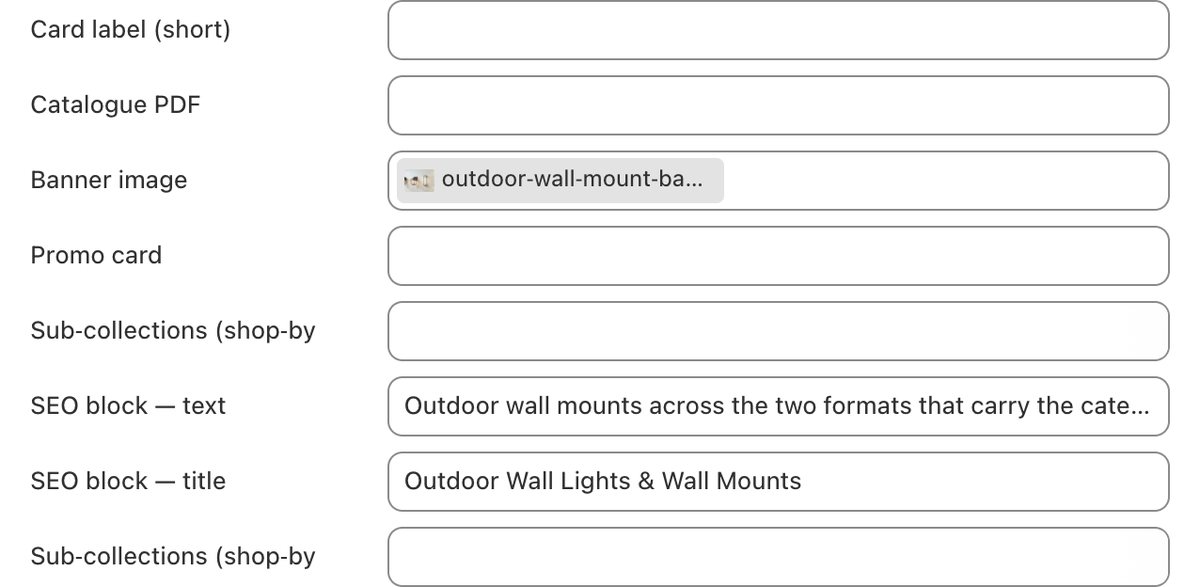
Every field on a collection
| Field | What it does | If empty |
|---|---|---|
| Title | The page heading and the name in the menu | n/a — always set |
| Description | The short paragraph under the banner | No intro paragraph |
| Collection image | Used where the collection appears as a card elsewhere | A card with no image |
| Banner image | The wide image across the top of the page. This is the one that shows — it wins over Collection image | The page leads with its title instead |
| SEO block — title | Heading of the SEO text block at the foot of the page | No heading on that block |
| SEO block — text | The written block at the foot of the page. Carries the category's search copy | No SEO block at all |
| Sub-collections (shop-by tiles) | The row of child-collection tiles, shown as picture tiles | No tiles |
| Sub-collections (shop-by buttons) | The same idea as plain text buttons instead of tiles | No buttons |
| Card label (short) | A shorter name used where the full collection name will not fit on a card | The full title is used |
| Catalogue PDF | A downloadable catalogue for that collection | No download link |
| Promo card | A promotional card placed among the products — see below | No card, products close the gap |
The promotion card inside the grid
A collection can carry a promotional card sitting among the products rather than above them — useful for pushing a sale, a sub-range or a linked page without adding another band to the page.
The content comes from a Promo card record, and the collection points at it. Every field on the record is optional: an image on its own will render, and the whole card is clickable via Link.
- Create or open the recordContent → Metaobjects → Promo card
Fill any of subheading, heading, text, button label, link and image. See Metaobject Records.
Record saved
- Point the collection at itProducts → Collections → [Collection] → Metafields → Promo card
Select the record and save. The card appears in the grid.
Card visible on the collection page
Both languages
Collection title, description, SEO block and card label all need French. They are translated in the same place as product copy: Apps → Translate & Adapt → Collections.